
In this guide
Bank reconciliation in Xero means matching every line on your bank statement to a transaction already recorded in the ledger, an invoice, a bill or a payment, and then confirming that match on the reconcile screen. Xero pulls in the statement lines (through a live feed abroad or a manual import in India), suggests what each one relates to, and turns green once the two sides agree. The software does most of the matching, but a human still confirms each line, which is exactly where accuracy is won or lost. This guide explains how feeds and reconciliation work in practice for Indian businesses, and where the common traps sit. If you would rather hand the monthly close to a team, our Xero Accounting Services cover the full cycle.
Does Xero do bank reconciliation, and how far does it automate it?
Yes, reconciliation is the core of Xero. Every bank account has a reconcile screen with two columns: the statement line on the left and Xero's suggested match on the right. When they agree, you click OK and the line is reconciled. Xero automates the matching, not the judgement. It will propose a match when a statement amount equals an unpaid invoice or bill, apply any bank rules you have written, and remember contacts you have coded before. What it cannot do is decide that a payment marked "NEFT CR" is actually a customer refund rather than a sale. That call is yours, so "automatic bank reconciliation" in Xero is better read as "assisted": the line is suggested, you confirm it. This is standard double-entry bookkeeping with a faster front end.
How Xero bank feeds work in India
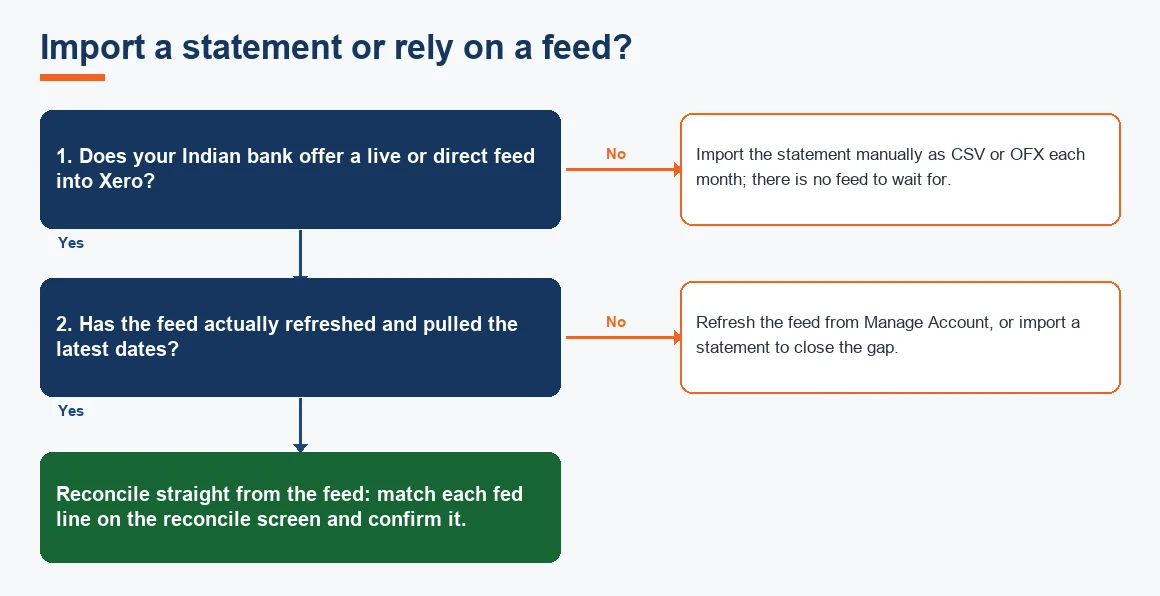
Outside India, Xero connects directly to many banks and pulls transactions automatically, usually refreshing once a day overnight, with a few direct feeds updating several times a day. Indian banks rarely offer this, so most Indian users have no live feed at all and import statements instead. That is not a limitation on reconciliation itself, only on how the lines arrive. You export a statement from net banking and bring it into Xero under Accounting, Bank Accounts, Manage Account, Import a Statement. Xero accepts CSV, OFX, QIF and QBO files. For a plain CSV you map the columns to date, description, amount and reference.
The single biggest import mistake is the date format. Indian statements are almost always dd/mm/yyyy, and if Xero reads them as mm/dd/yyyy the whole file posts into the wrong period. Set the format before you upload, and check that the first and last dates look right afterwards. If you run several accounts, current, EEFC, credit card, Xero handles multiple bank accounts happily, each with its own reconcile screen and its own feed or import routine. For a wider view of whether the platform suits local compliance, see Does Xero Work for Indian Businesses? A GST and Compliance Check.
How to reconcile a bank account in Xero, step by step
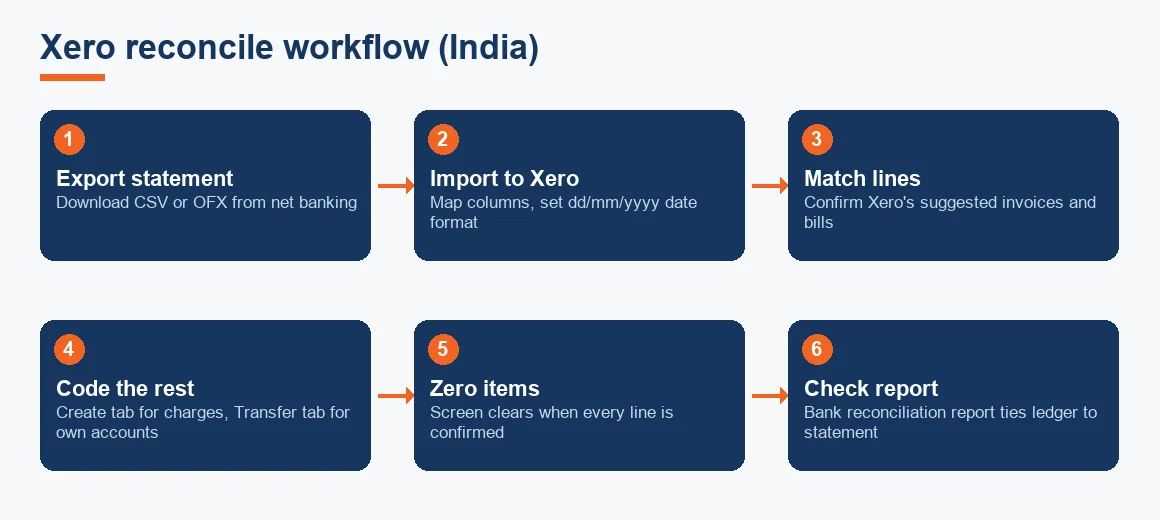
Once the lines are in, the reconcile screen drives the work. The fastest way to reconcile is to let Xero's suggestions do the routine matching and to reserve your attention for the lines it cannot place.
- Open the bank account and click Reconcile; Xero lists each unmatched statement line.
- Where Xero shows a green Match with an existing invoice or bill, check the amount and contact, then click OK.
- For lines with no invoice (bank charges, fuel, a subscription), use the Create tab to code the contact, account and GST rate in place.
- Where a bank rule fires, review the suggested coding before confirming; the rule proposes, you approve.
- For money moved between your own accounts, use the Transfer tab and pick the other account.
- Work down until the screen reads zero items, then open the bank reconciliation report to confirm the ledger agrees with the statement.
Reconciling invoices specifically is the same motion: when a customer pays, the receipt appears as a statement line, Xero matches it to the open sales invoice, and confirming the line marks the invoice paid and updates the general ledger in one step. If you need this handled at volume across accounts, our bank and credit card reconciliation services and accounts reconciliation and audit teams do exactly this.
Bank rules: coding faster without hiding errors
Bank rules are Xero's real time saver and its quietest risk. You create them from Accounting, Bank Accounts, Bank Rules, set conditions on the payee, description or amount, and fix the contact, account code and tax rate to apply. A rule that codes any line containing "Airtel" to telephone expense at 18% GST removes a lot of repetitive keying. The threshold to understand is this: a rule only suggests an entry, it does not auto-reconcile it. Each statement line still has to be confirmed on the reconcile screen, which is your chance to catch a rule coding something it should not.
The danger is a rule written too broadly. A condition on "transfer" or a bare amount can swallow genuine one-off transactions and post them to a default account where nobody looks again. Keep conditions specific, prefer the contact or a distinctive part of the narration over round amounts, and review what a rule actually did for the first month before you trust it. The current GST rate you hard-code into a rule should match the CBIC rate notifications for that supply; a rule set once and forgotten will keep applying an old rate after a change.
Handling bank transfers and multiple accounts
Money moving between your own accounts is the classic double-counting trap. If you reconcile the outgoing leg as a payment and the incoming leg as a receipt, you create two unrelated entries and inflate reported turnover. Use the Transfer tab on the reconcile screen of one account, pick the other account, and Xero creates a single transfer that clears both sides at once. Where the two legs fall in different months, for example a sweep initiated on the 31st that lands on the 1st, route them through a bank clearing account and match each side on its own date, so neither month shows a false gap. Credit card accounts behave the same way: the card is its own bank account in Xero, and the monthly payment from your current account is a transfer, not an expense.
Why is Xero not reconciling? Common causes
When a reconcile screen refuses to go green, the cause is almost always one of a handful of things rather than a software fault.
- Duplicate imports: the same statement period brought in twice, so lines appear against no real balance. Delete the duplicate import statement lines, do not reconcile them.
- Wrong opening balance: if the conversion balance or first import is off, every subsequent balance is off by the same amount. Fix the conversion balance, not the individual lines.
- Date format: lines posted to the wrong month from a mm/dd/yyyy misread; re-import with the correct format.
- Unpresented cheques and deposits in transit: genuine timing differences that resolve when the item clears; these are not errors, they simply sit until the bank catches up.
- Bank charges and interest not yet recorded: small debits the bank applied that are not yet in the ledger; code them on the Create tab.
The bank reconciliation report, found under Accounting, Reports, is where you diagnose these. It sets the statement balance against the Xero balance and lists the reconciling items in between, which points you straight at the difference.
Unreconcile versus Remove and Redo
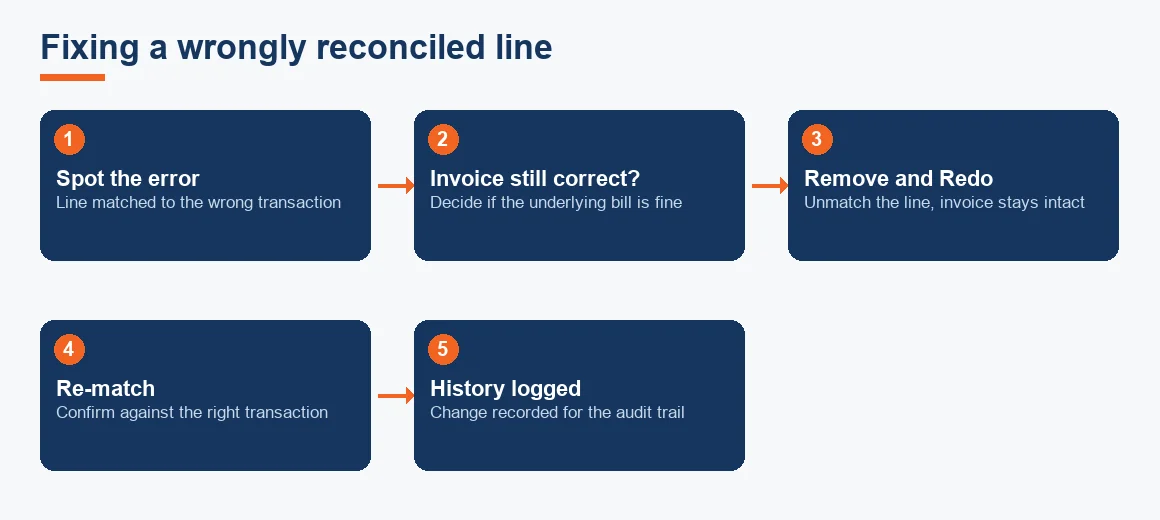
Both options undo a reconciliation, and choosing wrongly wastes time. Remove and Redo, on the bank account's transactions tab, unreconciles the statement line and sends it back to the reconcile screen while leaving the underlying invoice or bill fully intact. Use it when the line was matched to the wrong thing but the invoice itself is fine. Unreconcile is used where the entry is correct but simply attached to the wrong statement line, and you want to keep the entry and re-point it. Both actions are recorded in History and Notes, so the audit trail stays complete either way, which matters when a reviewer or auditor later asks why a line changed. Automations like these are covered further in Xero Automation: Rules, Repeating Invoices and Workflows.
Worked example: a month-end bank reconciliation
Suppose your current account statement closes on 31 July at a balance that does not match Xero, because of one uncleared cheque, one deposit still in transit, and bank charges Xero has not yet recorded. The worksheet below reconciles the two. All figures are illustrative.
| Line | Detail | Amount (INR) |
|---|---|---|
| Balance as per bank statement (31 Jul) | Closing balance shown by the bank | 4,85,000 |
| Add: deposit in transit | Customer cheque banked, entered in Xero, not yet credited by bank | 60,000 |
| Less: unpresented cheque | Vendor cheque issued and in Xero, not yet cleared | (95,000) |
| Adjusted bank balance | What the bank will show once both clear | 4,50,000 |
| Balance as per Xero cashbook | Ledger balance before month-end coding | 4,50,767 |
| Less: bank charges not yet recorded | Fee INR 650 plus GST at 18% (INR 117) | (767) |
| Adjusted Xero balance | After coding the charge on the Create tab | 4,50,000 |
Both adjusted balances now agree at INR 4,50,000, so the account reconciles. The deposit in transit and unpresented cheque need no entry; they are timing differences that clear on their own. The only ledger action is coding the INR 767 charge, after which the reconcile screen reads zero.
Key terms
- Bank Reconciliation: matching the ledger cash balance to the bank statement and explaining any difference.
- Xero Bank Rules: saved conditions that auto-suggest contact, account and tax coding for matching statement lines.
- Automated Bank Feeds: a live connection that pulls statement lines into the software, common abroad, rare for Indian banks.
- Bank Clearing Account: a holding account used to park one leg of a transfer that spans two months.
- Outstanding Checks / Timing Differences: items recorded in the books but not yet cleared by the bank.
Xero, Zoho Books and other options
The reconcile mechanics described here are broadly similar across cloud ledgers, but the feed situation differs. Because Indian banks rarely feed Xero directly, some businesses prefer a platform with local bank integrations. A side-by-side sits in Xero vs Zoho Books: A Comparison for Indian Businesses, and if you are weighing tools we also run Zoho Books Accounting, Odoo Accounting Services and Tally Prime Accounting Services. Whichever you land on, the discipline is identical: import or feed the lines, match against real transactions, and confirm every one. Where a reconciliation surfaces a fixed asset purchase, our depreciation calculator helps schedule it once it is coded, and the banking mechanics themselves follow the account-statement norms the Reserve Bank of India sets for scheduled banks.
Key takeaways
- Reconciliation in Xero is assisted, not automatic: Xero suggests the match, you confirm each line.
- Indian users usually import CSV or OFX statements monthly; set dd/mm/yyyy before uploading.
- Bank rules save time but only suggest coding, so keep conditions specific and review the first month.
- Use the Transfer tab for own-account movements to avoid inflating turnover.
- Remove and Redo unmatches a line without deleting the invoice; Unreconcile re-points a correct entry.
Decision guide