

In this guide
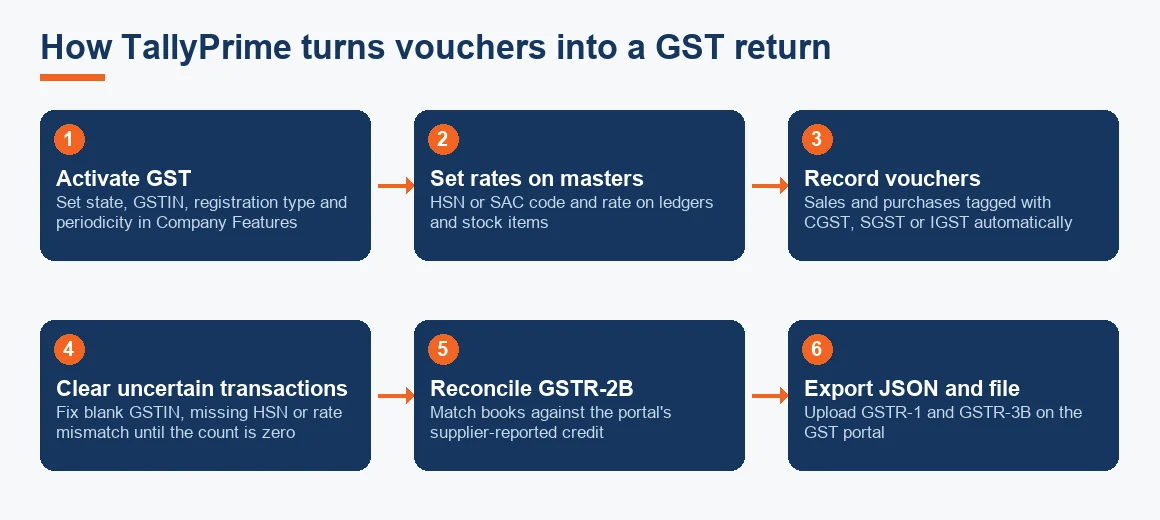
GST in TallyPrime is a built-in feature that tags every sales and purchase voucher with the tax details it needs, so that GSTR-1 and GSTR-3B can be generated straight from your day-to-day entries. You switch it on once in the company settings, record invoices the normal way, clear anything the software cannot classify, and then export a return file to upload on the GST portal. This guide walks through each of those steps, the one figure that tells you a return is ready, and a worked example of the tax computation, written for owners who keep their own books rather than for software trainers.
What GST in TallyPrime means, with a short example
Think of GST in TallyPrime as a layer that sits on top of ordinary double-entry bookkeeping. When you raise a sales invoice for a customer in Maharashtra at 18 per cent, Tally does not just debit the party and credit sales; it also splits the tax into CGST and SGST, records the customer GSTIN, the HSN code and the place of supply, and files that voucher into the correct table of GSTR-1. Sell to a customer in another state and the same voucher is recorded as IGST instead. Because the return is assembled from these tagged vouchers, the quality of your GST filing is only ever as good as the quality of your data entry, which is why the setup and the review stages below matter more than the filing click itself.
How to activate GST in TallyPrime
GST is not on by default in a fresh company. To activate it, open the company, go to Features (F11), and set Enable Goods and Services Tax (GST) to Yes. TallyPrime then asks for the details that drive every later calculation, so enter them carefully:
- State and registration type (Regular or Composition), which decides whether you file GSTR-1 and GSTR-3B or the composition return.
- Your GSTIN, which prints on invoices and appears on the return.
- The applicability date, so historical vouchers before GST registration are not pulled into a return.
- The default rate and periodicity (monthly or quarterly), which should match the periodicity you chose on the portal.
Get the registration type and the periodicity right at this stage. A regular dealer wrongly set to composition, or a QRMP taxpayer set to monthly, produces returns that will not reconcile with the portal later. If you also handle e-invoicing or e-way bills, those credentials are entered in the same GST details screen; the mechanics of that are covered separately in our note on generating e-way bills and e-invoices in Tally.
Creating GST ledgers and stock items
For the tax to compute, three things need a rate: the sales and purchase ledgers, the stock items or service ledgers, and the tax ledgers themselves. Create separate duty ledgers for CGST, SGST, IGST and Cess under the group Duties & Taxes, each with the tax type set correctly. On each stock item, set the GST rate and HSN or SAC code; where a whole ledger carries one rate you can set it at ledger level instead. TallyPrime supports rate setup at the company, group, ledger and item level, and the most specific level wins, so decide early where your rates will live to avoid two different rates fighting on the same invoice. All of this posts through the general ledger exactly like any other master, so nothing about the underlying accounting changes.
Recording a GST invoice and a GST entry in Tally
Once masters carry rates, a GST entry is an ordinary voucher. Record a sale through Voucher (F8 for sales), select the party, add the stock items, and TallyPrime calculates CGST and SGST or IGST automatically from the place of supply. Select the GST tax ledgers to complete the entry and the invoice is ready to print with the tax breakup, the GSTIN of both parties and the HSN summary. Purchases work the same way through the purchase voucher, and the input tax on them becomes your claimable credit. If you record a lot of vouchers a day, the muscle-memory shortcuts in our guide to common Tally shortcuts and data-entry tips save real time, since GST accuracy depends on consistent entry more than anything else. Every one of these entries is, at heart, a journal entry with a tax tag attached.
How to get GST data ready: the Uncertain Transactions list
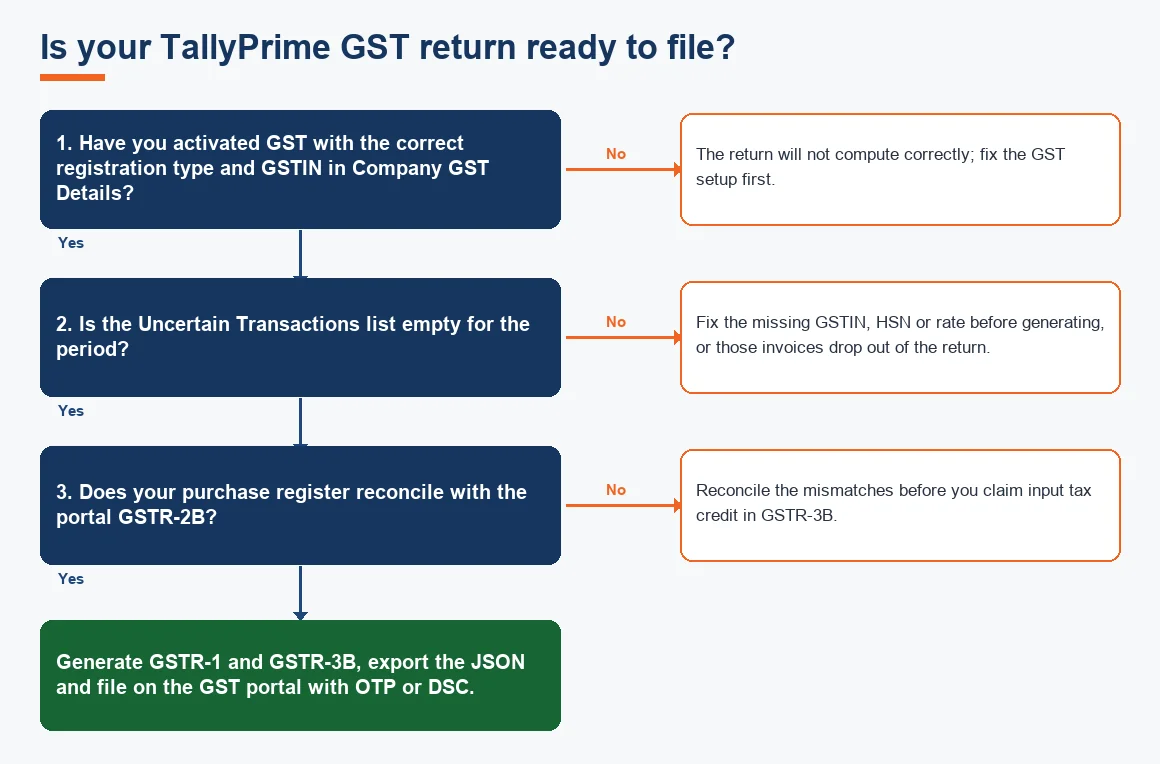
This is the step most tutorials skip and the one that decides whether your return is clean. Open the GST report (Gateway of Tally > Display More Reports > GST Reports > GSTR-1 or GSTR-3B). Every voucher for the period is sorted into Included in return, Not relevant or Uncertain Transactions. An uncertain transaction is one TallyPrime cannot place because a detail is missing or contradictory: a blank or invalid party GSTIN, a missing HSN code, a tax rate that does not match the ledger, or a state that conflicts with the place of supply. Drill into the list, fix each voucher, and watch the count fall to zero. A return generated with a non-zero uncertain count silently omits those invoices, so treat that figure, not the deadline, as your green light to file.
GSTR-1 and GSTR-3B in TallyPrime, and how filing actually happens
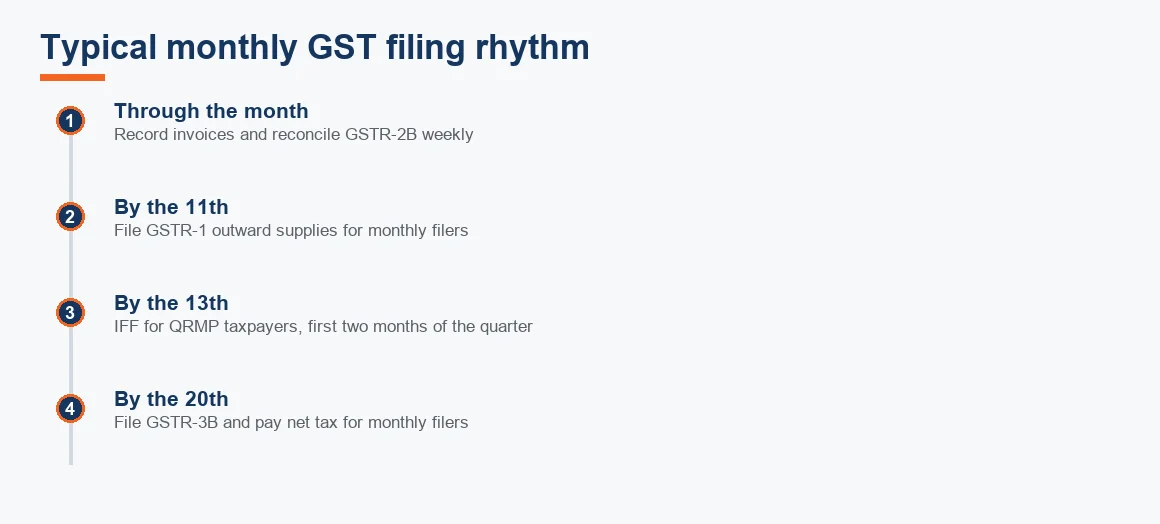
GSTR-1 is your outward-supply return: the invoice-level list of what you sold. GSTR-3B is the monthly or quarterly summary that nets your output tax against input tax credit and shows the cash payable. In TallyPrime, GSTR-3B is a report that reads your vouchers and lays them out in the exact boxes of the portal form, so you can see the liability before you file. What TallyPrime does not do is file on your behalf: for GSTR-1 and GSTR-3B it exports the data as a JSON file that you upload on the GST portal or through the government offline tool. Newer releases can also connect to the portal to push data directly, but the legal act of filing, with your OTP or DSC, stays on the portal. The CBIC keeps the current return formats and due dates on its GST resources site; check them each year rather than relying on a rate memorised from an old assessment.
Worked example: computing net GST payable in GSTR-3B
Take a Maharashtra trader for one month. All supplies and purchases are at 18 per cent. The table shows how TallyPrime nets output tax against input tax credit to arrive at the cash actually payable. Figures are illustrative.
| Head | Output tax (on sales) | Input tax credit (on purchases) | Net cash payable |
|---|---|---|---|
| IGST (inter-state, sales 5,00,000; purchases 2,00,000) | 90,000 | 36,000 | 54,000 |
| CGST (intra-state, sales 10,00,000; purchases 6,00,000) | 90,000 | 54,000 | 36,000 |
| SGST (intra-state, sales 10,00,000; purchases 6,00,000) | 90,000 | 54,000 | 36,000 |
| Total | 2,70,000 | 1,44,000 | 1,26,000 |
Output tax of 2,70,000 less eligible credit of 1,44,000 leaves 1,26,000 to pay in cash for the month. TallyPrime shows this same summary in the GSTR-3B report, which is why the reconciliation in the next section matters: if the credit figure in your books is higher than what the portal actually allows, your real cash outflow is larger than the report suggests.
Reconciling GSTR-2B before you file
Your input tax credit is only safe to the extent it appears in GSTR-2B, the static statement the portal builds from your suppliers' filings. Download the GSTR-2B JSON for the period from the portal and import it into TallyPrime, then open the reconciliation view. Tally matches supplier GSTIN, invoice number, date and value, and sorts every line into fully matched, partially matched, available only in your books, or available only on the portal. Anything sitting in books only is credit a supplier has not yet reported, and claiming it in GSTR-3B is a risk. Clearing this list before you finalise GSTR-3B is the single biggest protection for your credit claim; the mechanics of the match are explained in our glossary note on GSTR-2B input tax credit matching.
If you outgrow Tally, or never started on it
TallyPrime suits businesses that want the ledger on their own machine and a filing workflow they control. If you are weighing it against a cloud stack, the same GST logic carries over to Zoho Books accounting, Xero accounting and Odoo accounting, each with its own reconciliation view. If you are still on the older engine, our comparison of TallyPrime versus Tally ERP 9 covers what changed for GST specifically, and it is worth keeping a disciplined Tally data backup routine whichever version you run, since a corrupt company file the week of filing is a problem no return format can fix. Setting up the GST configuration correctly the first time is exactly where our Tally Prime accounting services team spends its effort, because a clean master saves a dozen uncertain-transaction fixes later.
Key terms
- GSTR-2B Input Tax Credit Matching: comparing the portal's supplier-reported credit statement against your purchase register before you claim.
- General Ledger: the master record of every account into which GST vouchers post like any other entry.
- Journal Entry: the underlying debit-and-credit record that a GST voucher extends with a tax tag.
- Tally Vault: TallyPrime's password feature that encrypts the company data file.
Key takeaways
- Activate GST once in Company Features and enter the state, GSTIN, registration type and periodicity accurately; these fields drive every later calculation.
- Set HSN or SAC codes and rates at the master stage so vouchers do not fall into the Uncertain Transactions list.
- Drive the Uncertain Transactions count to zero before generating any return; a non-zero count silently drops invoices.
- TallyPrime prepares and exports the return as JSON, but filing with OTP or DSC happens on the GST portal.
- Reconcile GSTR-2B before finalising GSTR-3B so your input tax credit is one the portal will actually allow.
Decision guide