
In this guide
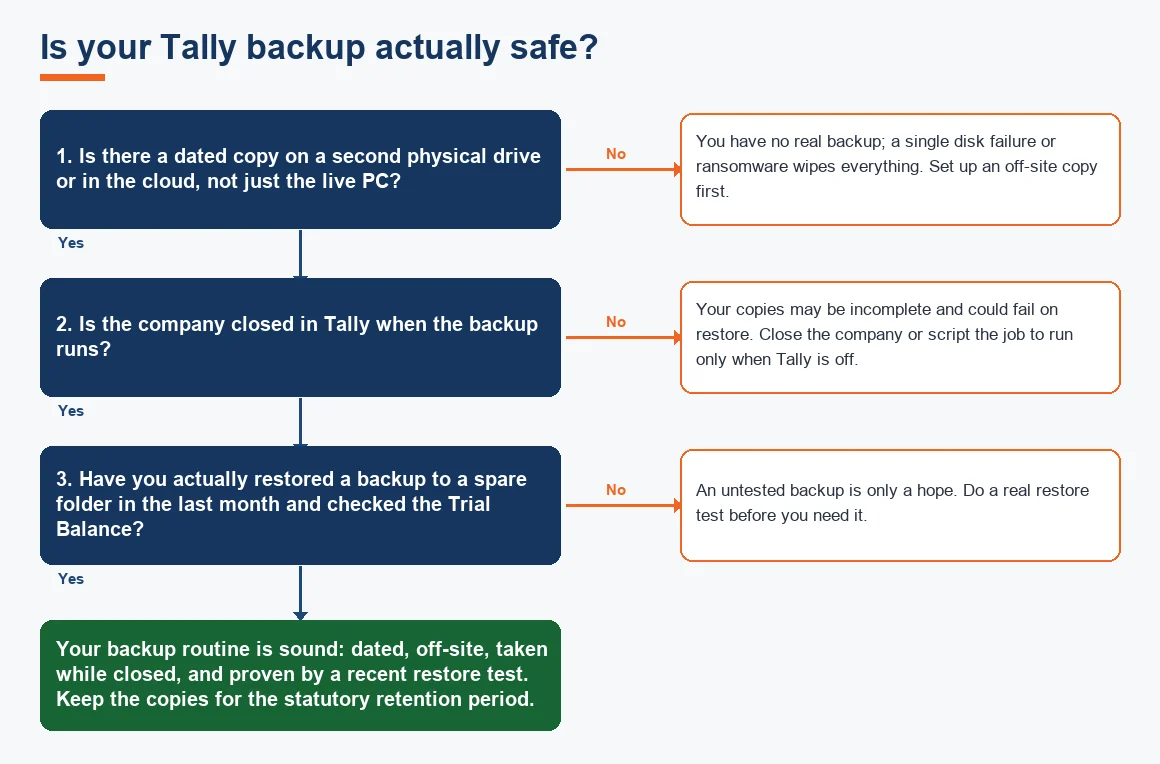
The best practice for Tally data backup is simple to state and easy to neglect: keep at least one dated copy of your company data on a second drive and one in the cloud, close the company before you copy it, and test a restore before you ever need it. A single copy of the numbered company folder on one computer is not a backup. It is one power surge, one ransomware click or one stolen laptop away from a year of lost vouchers. This guide sets out a routine that survives file corruption, not only hardware failure, and shows how to restore and recover data when something does go wrong.
Where is Tally data stored?
TallyPrime keeps each company in a numbered folder (for example 10001, 10002) inside its data directory. By default that path is the Data folder under the Tally installation, but you can see and change it at Gateway of Tally, then F1 (Help), then Settings, then Data Configuration. The folder holds the transaction and master files that make up your accounts, so this numbered folder is exactly what any backup routine has to protect. Knowing the path matters: if you have never checked it, your backups may be pointing at an empty or wrong directory.
Because the data sits as ordinary files on disk, it is exposed to the same risks as any other file: disk failure, accidental deletion, corruption during an improper shutdown, and malware. Understanding your numbered folder is also the first step before you copy data to another computer or migrate it into a cloud system such as Zoho Books Accounting, Xero Accounting Services or Odoo Accounting Services.
How do you back up data in Tally?
TallyPrime has a built-in backup: go to Gateway of Tally, then Data, then Backup, choose the source company and a destination path, and confirm. Tally writes two files, TBK900.001 (the data) and TBK900.CFG (the configuration), into the destination folder. There is no single dedicated keyboard shortcut for backup in TallyPrime; you reach it through the Data menu, so if someone tells you a magic hotkey, treat it with caution. Learning the wider set of movement keys does help you work faster, and our note on common Tally shortcuts and data entry tips covers those.
The built-in backup is useful but limited. It writes to a path you choose, and if that path is another folder on the same disk, a disk failure takes both the original and the backup. Best practice is to point the destination at a different physical drive and then copy that backup off-site or to the cloud on a schedule.
How to set up Tally auto backup
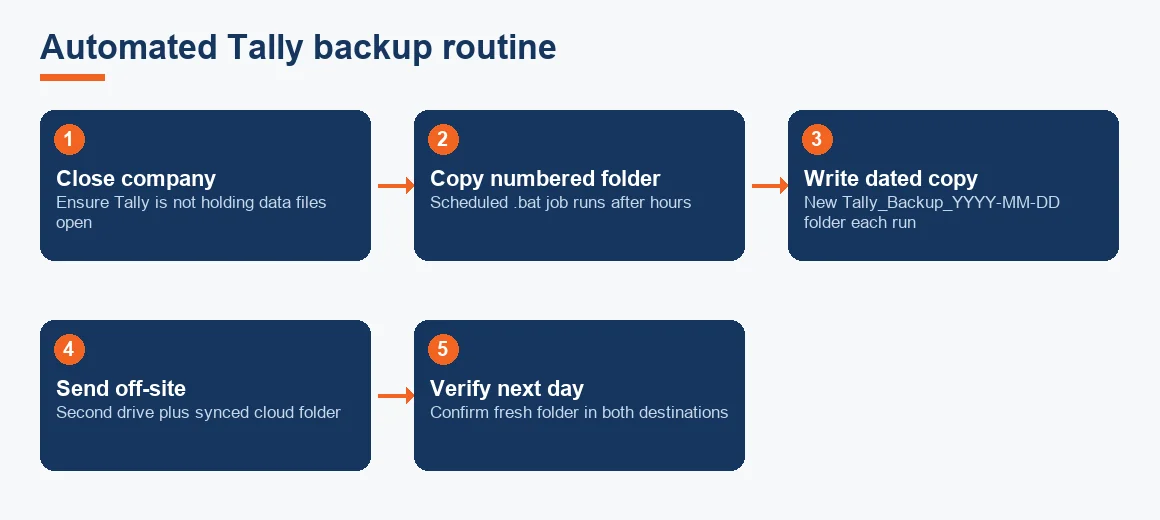
TallyPrime has no built-in scheduler, so automation is done outside the application using Windows Task Scheduler. The reliable pattern is:
- Write a short script (a .bat file) that copies the numbered company folder to a second drive and to a synced cloud folder, into a new dated sub-folder each run.
- Make sure everyone has closed the company in Tally before the job runs; a file open inside Tally can copy incompletely.
- Open Windows Task Scheduler, create a task, and point it at the script.
- Set the trigger for after business hours, for example 9:30 pm daily.
- Test the task manually once, then check the next morning that a fresh dated folder appeared in both destinations.
A cloud-synced folder (any reputable provider) gives you the off-site copy without a manual upload. The routine below shows the full loop.
Backups that survive corruption, not just hardware failure
Most owners back up against a dead hard disk. The harder risks are file corruption, ransomware that encrypts every connected drive, and quiet human error that is only spotted weeks on. The 3-2-1 rule answers all three: keep three copies of your data, on two different media, with at least one copy off-site. In practice that is the live data, a dated backup on an external or network drive, and a cloud copy. The table compares the common approaches.
| Method | Protects against | Weakness | Restore-tested? |
|---|---|---|---|
| Copy numbered folder on same PC | Accidental deletion inside Tally | Disk failure, ransomware, theft wipe both copies | Rarely |
| Tally built-in backup to same disk | User error, quick rollback | Single disk, single dated copy often overwritten | Sometimes |
| Scripted daily copy to second drive plus cloud (3-2-1) | Disk failure, corruption, ransomware, theft, fire | Needs setup and a monthly restore test | Yes, if you test |
For sensitive books, combine the routine with Tally Vault so the data is encrypted at rest, and restrict who can reach the folder over the network via remote Tally access controls.
How to restore a Tally backup
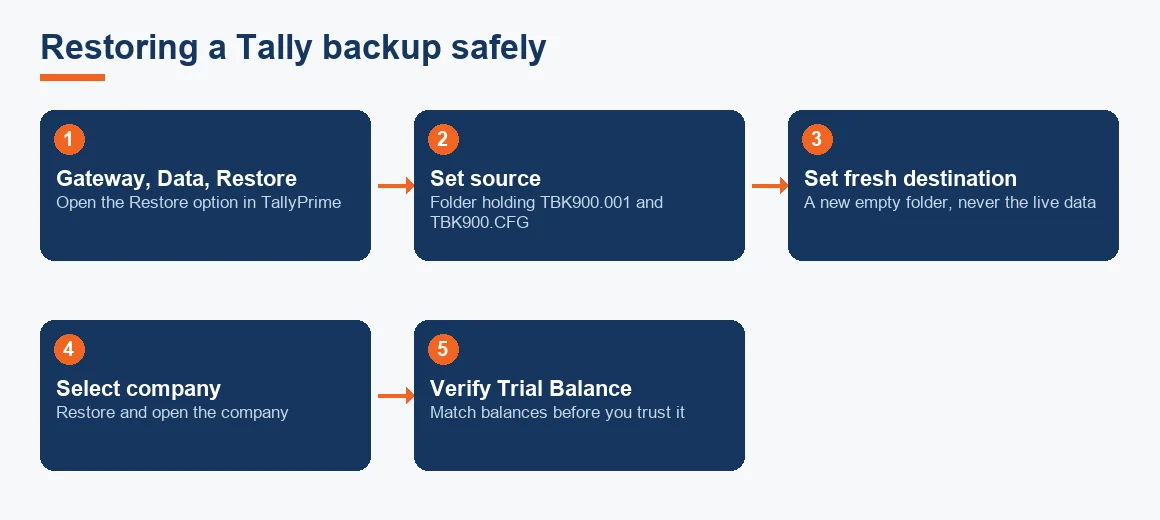
Restoring is where good routines are proven or exposed. From the TallyPrime Gateway, choose Data, then Restore, set the source path to the backup folder holding TBK900.001 and TBK900.CFG, set the destination to a fresh empty folder rather than your live data folder, and select the company. Restoring over the working folder can overwrite current vouchers, so always restore to a new location, open the restored company, and check the Trial Balance and closing balances before you rely on it.
How to recover damaged Tally data
If a company will not open or throws errors, TallyPrime's Rewrite can rebuild the data files. Back up the damaged folder first, then trigger Rewrite from the company selection screen and confirm. Rewrite repairs index and structural damage but it does not recover vouchers that were never written or were already lost, which is exactly why a dated backup is the real protection. To move a company to another computer, copy the numbered folder to the same data path on the second machine while Tally is closed on both; copying a folder is not a substitute for a proper backup, because a partially written folder gives no error until you open it. If you are also weighing a version move, our comparison of Tally Prime versus Tally ERP 9 explains what changed, and the Tally XML export is worth keeping as a portable secondary copy of masters and vouchers.
Worked example: what data loss actually costs
Owners under-invest in backups because the loss feels abstract. Put numbers on it. Suppose a disk fails and the last usable copy is six months old. The figures below are indicative and Exl GST.
| Item | Basis | Amount (INR) |
|---|---|---|
| Vouchers to re-enter | 6 months, ~300 per month = 1,800 vouchers | 1,800 |
| Re-entry time | 1,800 vouchers at 15 per hour = 120 hours | 120 hrs |
| Bookkeeper cost | 120 hours at 450 per hour (indicative) | 54,000 |
| GSTR reconciliation redone | 6 months at 2,500 per month (indicative) | 15,000 |
| Estimated cost of the gap | Re-entry plus reconciliation | 69,000 |
Against that, a scripted daily backup to a second drive and a cloud folder costs a few thousand rupees a year of storage and an hour to set up. The arithmetic makes the case on its own. The lost time also delays return filing, which is why keeping clean books feeds directly into work like filing GST returns using Tally Prime and generating e-way bills and e-invoices in Tally.
How long must you keep Tally records?
Backups are also a statutory duty, not only an IT choice. Under GST law, Section 36 of the CGST Act requires a registered person to keep books and records until the expiry of 72 months (six years) from the due date of the annual return for that year, as set out by the CBIC. Under the Companies Act 2013, Section 128(5) requires a company's books to be preserved for not less than eight financial years, per the Ministry of Corporate Affairs. Income Tax record-keeping rules add their own retention period, detailed by the Income Tax Department. Your dated Tally backups are how you actually satisfy these periods years after the events. Once the data is safe and current, routine period-end tasks such as running a depreciation calculation and reconciling the bank reconciliation stay reliable because the underlying records can always be reproduced.
Key terms
- Tally Vault: a password feature that encrypts a company's data at rest so the folder cannot be opened without the vault key.
- Tally XML Export: a portable export of masters and vouchers, useful as a secondary, software-neutral copy.
- Remote Tally Access: controlled access to a Tally company over a network, which needs its own security and folder permissions.
- Trial Balance: the report you check after a restore to confirm the data is complete and balances match.
- General Ledger: the full record of every account whose totals you verify against a prior period after restoring.
Key takeaways
- One copy on one machine is not a backup; keep three copies, on two media, with one off-site.
- Close the company before any copy or backup, or the copy can fail silently on restore.
- Automate with Windows Task Scheduler and dated folders, since TallyPrime has no built-in scheduler.
- Always restore to a fresh empty folder and verify the Trial Balance before trusting a backup.
- Test a real restore monthly, and keep backups for the years that GST, Companies Act and Income Tax rules require.
If keeping this routine running reliably is more than your team wants to manage in-house, that is a service question rather than a how-to one, and our Tally Prime accounting services team can own the backup, reconciliation and month-end close for you.
Decision guide