
In this guide
To use GST in Odoo you install the Indian Accounting localisation package (l10n_in), set your company state and GSTIN, then let fiscal positions decide whether an invoice carries IGST or CGST plus SGST. Odoo does support Indian GST, and it is compliant when the localisation is set up in the right order: taxes and tax groups first, then fiscal positions, then HSN codes on products, and finally e-invoicing if your turnover requires it. This guide explains each step in plain terms, gives one worked tax calculation, and points you to the parent Odoo Accounting Services page if you would rather have the setup done for you.
Does Odoo support Indian GST?
Yes. Odoo ships a set of India-specific modules that sit on top of its core double-entry engine. The base module, l10n_in, loads the Indian chart of accounts, the standard GST tax codes and the HSN or SAC fields. Companion modules add the Indian GST reports, e-invoicing (IRN) and e-way bill generation. Without these installed, Odoo behaves like a generic international ledger with no concept of CGST, SGST or IGST, so the first real task is always installation.
A short reminder on scope: this article is a setup tutorial. If you are still deciding whether the software fits your business, read our companion piece on whether Odoo is good accounting software for Indian businesses and the honest list of disadvantages of Odoo accounting before you commit.
Which Odoo module do you install for GST?
The mandatory package is l10n_in (Indian Accounting). Install it from the Apps menu before you post any transactions, because it rewrites the chart of accounts and adds the GST tax codes. The related modules you will usually want are the Indian GST reports module, the e-invoicing module and the e-way bill module. Install only what your turnover and business actually need; every extra module is one more thing to keep updated.
How do you configure GST in Odoo, step by step?
The setup follows a fixed order. Each step depends on the one before it, so resist the urge to jump ahead to raising invoices.
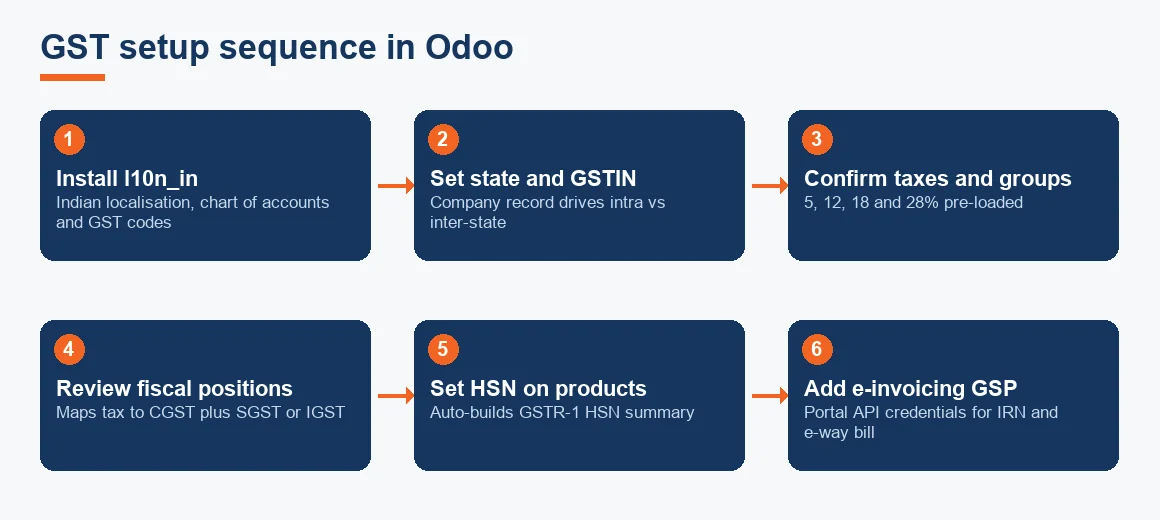
- Install l10n_in. Apps, search Indian Accounting, install. This is the foundation and cannot be skipped.
- Set the company state and GSTIN. On the company record enter the registered state and the 15-digit GSTIN. The state field is what Odoo reads to decide intra-state versus inter-state tax, so it must be exact.
- Check taxes and tax groups. The localisation pre-loads GST 5%, 12%, 18% and 28% as sale and purchase taxes, each split into the correct tax group. Confirm the rates and the linked ledger accounts rather than creating your own from scratch.
- Review fiscal positions. Odoo creates intra-state and inter-state fiscal positions that map a single tax to its CGST plus SGST or IGST equivalent. This mapping is the heart of GST in Odoo.
- Set HSN or SAC on every product. Enter the code on the product form so the GSTR-1 HSN summary populates itself.
- Configure e-invoicing and e-way bills, if applicable. Add the GST Suvidha Provider API credentials generated on the portal so IRNs and e-way bills push automatically.
How do you create GST tax and tax groups in Odoo?
In most cases you do not create GST taxes at all, because l10n_in supplies them. Each rate exists once as a sale tax and once as a purchase tax, and each belongs to a tax group such as GST 18%. The tax group is what lets a single fiscal position swap an 18% IGST line for a 9% CGST plus 9% SGST pair without you touching the invoice. If you genuinely need a non-standard rate, duplicate an existing GST tax so it inherits the correct tax group and ledger mapping, then edit the percentage. Building a tax from a blank form usually breaks the fiscal position link and the GST reports that depend on it.
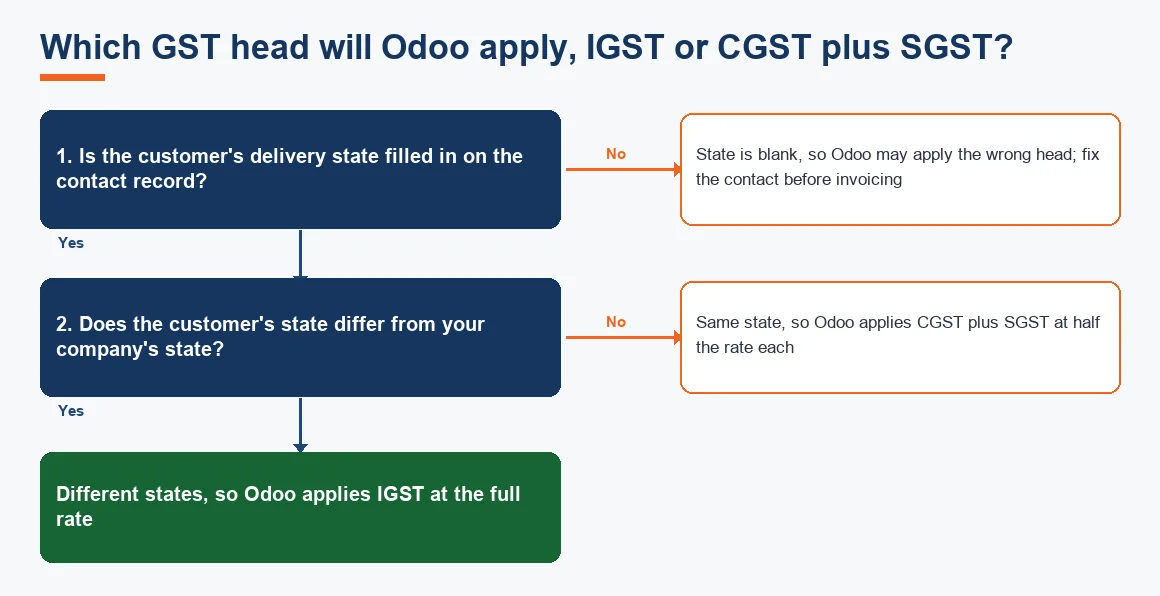
How does Odoo decide between IGST and CGST plus SGST?
Odoo compares two states: the state on your company record and the state on the customer's delivery address. When the states match, the intra-state fiscal position applies and the invoice carries CGST and SGST at half the rate each. When they differ, the inter-state fiscal position applies and the invoice carries IGST at the full rate. This logic is automatic, but it is only as reliable as the state data on your contacts.
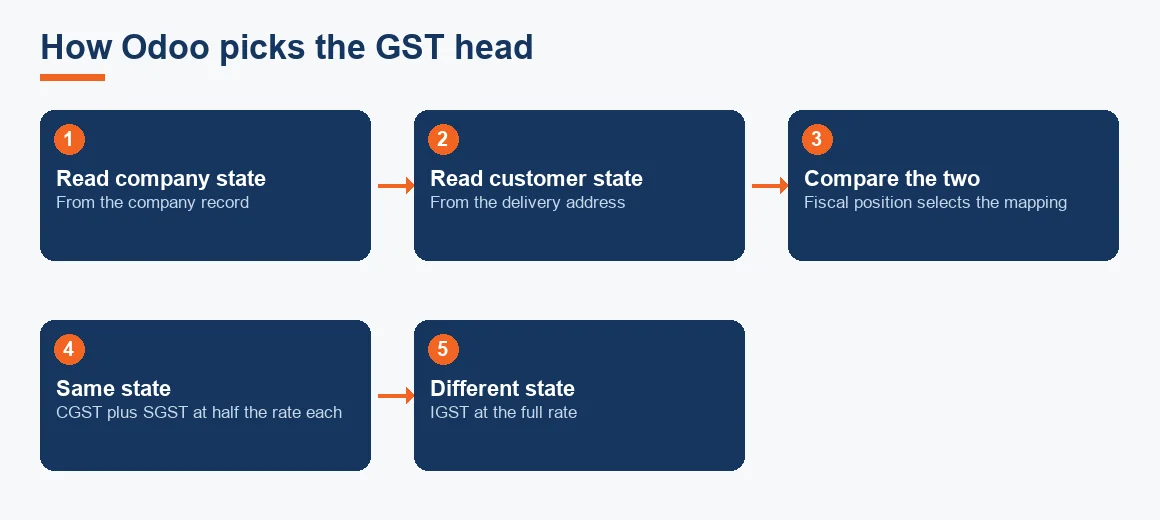
Worked example: intra-state versus inter-state on a Rs 1,00,000 invoice
Assume a taxable value of Rs 1,00,000 on goods taxed at 18% GST. The table shows how the same invoice splits depending on whether the customer is in the same state as your company or in a different one. Figures are indicative and Exl GST is not relevant here as the tax is the point of the example.
| Line | Intra-state (same state) | Inter-state (different state) |
|---|---|---|
| Taxable value | Rs 1,00,000 | Rs 1,00,000 |
| CGST 9% | Rs 9,000 | Rs 0 |
| SGST 9% | Rs 9,000 | Rs 0 |
| IGST 18% | Rs 0 | Rs 18,000 |
| Total tax | Rs 18,000 | Rs 18,000 |
| Invoice total | Rs 1,18,000 | Rs 1,18,000 |
The total tax and the invoice total are identical at Rs 18,000 and Rs 1,18,000; only the split between heads changes. That split is exactly what the fiscal position controls, and getting it wrong means your GSTR-1 reports the tax under the wrong head even though the customer paid the right amount.
Where do HSN codes go, and how much detail is required?
HSN for goods or SAC for services is entered on each product, under the Accounting or Purchase tab, in the HSN or SAC code field added by the localisation. Setting it at product level lets the GSTR-1 HSN summary build automatically instead of being typed in later. On the reporting depth: six-digit HSN is required where aggregate turnover exceeded Rs 5 crore in the previous financial year, and four digits is accepted below that. The current rules and thresholds are published by the CBIC, and it is worth confirming them each year rather than assuming last year's limit still holds.
How do you generate GST invoices and e-invoice IRNs from Odoo?
Once taxes, fiscal positions and HSN codes are in place, a normal customer invoice already carries the correct GST. For e-invoicing, the Indian e-invoicing module connects to a GST Suvidha Provider using API credentials you create on the GST portal. On confirmation Odoo pushes the invoice, receives the IRN and acknowledgement number, and stores the signed QR code on the record. E-invoicing is mandatory for businesses whose aggregate turnover crossed Rs 5 crore in any year from 2017-18 onward, so many growing SMEs now fall inside it. If you also move goods, the e-way bill module generates the bill from the same invoice.
How do you file GST returns from Odoo?
Odoo does not file on your behalf; it prepares the data. Run the GST report under Accounting reporting for the return period, then either export the summary for manual entry or use the GSTR-1 export that produces a JSON file for the GST portal offline utility. Before you upload anything, reconcile the export against the sales register and the credit note register, because amendments and cancelled invoices are the usual source of mismatch. For input tax credit, cross-check the purchase side against your GSTR-2B so you only claim what the portal reflects. The return due dates themselves are governed by the GST law and published on the GST portal, not by the software.
Is Odoo GST compliant, and how does it compare with the alternatives?
Odoo is GST compliant in India when the localisation is installed and configured correctly; compliance is a function of setup, not of the label. If you are weighing it against other software, our comparison of Odoo versus Zoho Books for an Indian SME goes deeper, and you can read about the equivalent setup on Zoho Books Accounting, Xero Accounting Services or Tally Prime Accounting Services if you have not settled on a platform. The practical difference is that Odoo asks for more configuration up front in exchange for a single system that also runs inventory, sales and manufacturing.
Key terms
- Odoo Fiscal Positions: the mapping rule that swaps one GST tax for its CGST plus SGST or IGST equivalent based on state.
- Odoo Double-Entry Engine: the underlying ledger that posts every GST invoice to the correct debit and credit accounts.
- GSTR-2B Input Tax Credit Matching: reconciling your purchase records against the portal's auto-drafted statement before claiming credit.
- General Ledger: the master record of all accounts the localisation loads for India.
Key takeaways
- Install l10n_in before the first invoice; retagging history later is painful.
- The company state and the customer's delivery state decide IGST versus CGST plus SGST.
- Fiscal positions do the tax split automatically, so never build GST taxes from a blank form.
- Put HSN or SAC on every product to auto-build the GSTR-1 HSN summary.
- Reconcile the Odoo export to your sales and credit note registers before filing.
Set up in the right order, GST in Odoo is dependable and largely hands-off at invoice time. If the configuration or a migration feels heavy, the Odoo Accounting Services team can set the localisation, taxes and fiscal positions for you and hand back a system that files clean.
Decision guide