In this guide
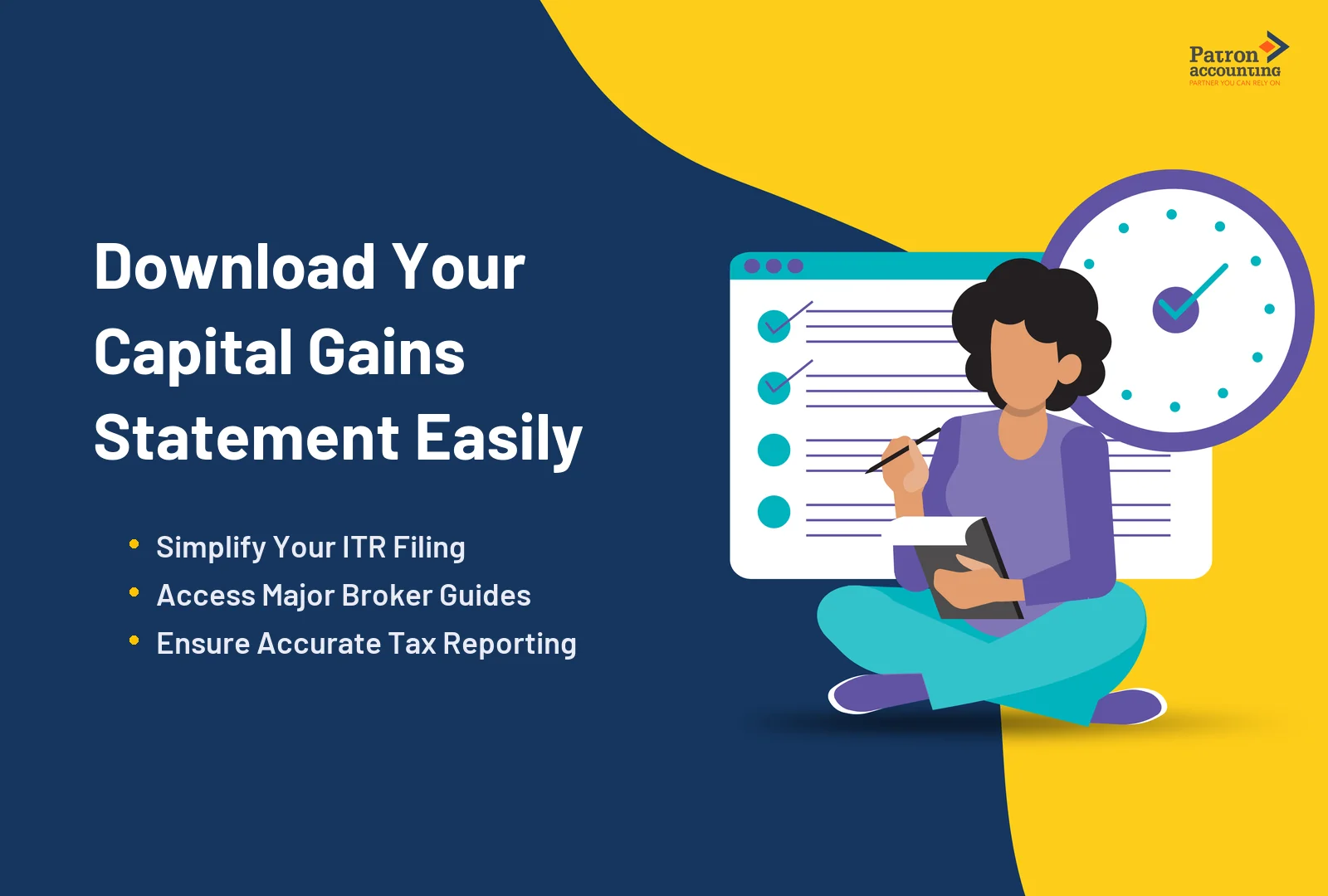
Filing ITR with stock market income requires accurate documentation. Your capital gains statement is the most critical document for reporting equity transactions. Without it, calculating STCG and LTCG becomes a tedious manual exercise prone to errors.
This comprehensive guide explains how to download capital gains report from every major Indian broker. You'll learn to access your broker capital gains statement quickly and understand the tax P&L statement India requirements.
What is a Capital Gains Statement?
A capital gains statement is a detailed report showing your profit or loss from selling securities. Brokers generate this document by analyzing your buy and sell transactions throughout the financial year. It categorizes gains into short-term and long-term based on holding periods.
Key Information in the Statement
| Component | Description |
| Script-wise details | Individual stock transactions with company name, ISIN, and quantity |
| Purchase details | Buy date, buy price, and total cost of acquisition including charges |
| Sale details | Sell date, sell price, and net sale consideration after charges |
| Holding period | Days held (determines STCG vs LTCG classification) |
| Gain/Loss calculation | Computed profit or loss with grandfathering adjustment if applicable |
| Tax categorization | STCG (Section 111A) or LTCG (Section 112A) classification |
How to Download Capital Gains Report: Broker-wise Guide
Each broker capital gains statement is available through their respective portals. Here's how to download capital gains report from major Indian brokers.
Zerodha Console
Login to console.zerodha.com > Reports > Tax P&L > Select financial year and segment > Download PDF/Excel
Groww
Open Groww app or website > Profile > Reports > Tax Reports > Select Capital Gains Statement > Download
Upstox
Login to my.upstox.com (back-office) > Reports > Tax P&L or Capital Gains > Select year > Download
Angel One
Login to trade.angelone.in > Reports > Tax Reports > Select Capital Gains Statement > Download
HDFC Securities
Login to hdfcsec.com > My Account > Reports > Tax Reports > Select year > Download
5Paisa
Login to 5paisa.com or app > Reports > Tax Reports > Select Capital Gains > Download
Understanding Tax P&L Statement India
The tax P&L statement India differs from a regular capital gains statement. It includes all trading segments, not just delivery equity. Refer to the Income Tax Act for detailed provisions.
| Segment | Tax Treatment | ITR Schedule |
| Delivery Equity | Capital Gains (STCG 20%, LTCG 12.5%) | Schedule CG |
| Intraday Equity | Speculative Business Income | Schedule BP (Speculative) |
| F&O Trading | Non-speculative Business Income | Schedule BP (Non-speculative) |
| Commodity Trading | Non-speculative Business Income | Schedule BP (Non-speculative) |
Using Your Capital Gains Statement for ITR Filing
Once you download capital gains report, follow these steps to use it correctly for ITR filing through the Income Tax e-Filing Portal.
Step 1: Verify Statement Accuracy - Cross-check against Form 26AS and AIS from the income tax portal.
Step 2: Identify Your ITR Form - Only capital gains: ITR-2. Capital gains plus F&O or intraday: ITR-3.
Step 3: Fill Schedule CG - Enter STCG under Section 111A. Enter LTCG under Section 112A with Rs. 1.25 lakh exemption.
Step 4: Include Script-wise Details (If Required) - For gains above certain thresholds, provide individual transaction information.
Step 5: Verify and Submit - Double-check all figures. Pay any tax due. Submit and e-verify using Aadhaar OTP.
For professional assistance with capital gains reporting, consider Income Tax Return Filing services from Patron Accounting.
Conclusion
Your capital gains statement is the foundation of accurate ITR filing for stock market investors. Knowing how to download capital gains report from your broker saves time and ensures accuracy. Download your statements early, verify against government records, and file your ITR with confidence.